-
DOWNLOADS & UPDATES
-
GETTING STARTED
-
TROUBLESHOOTING GUIDES
-
SHORE ADMINISTRATION
-
SHIP ADMINISTRATION
-
DUALOG ACADEMY
Promoted articles
-
Dualog Connection Suite - Latest Download Links
Introduction
On this page, you will find the latest download links for Dualog Connection Suite. Click on the link related to the product you wish to download and select where you want to save the file on your PC.
The release notes are available here.
Connection Suite 5.14.002 Files
File/Link Size Purpose Setup_x64_5.14.002.exe 661 MB Full installer 64bit (x64), includes Oracle 11G Core_Setup_5.14.002.exe 340 MB Core setup, installs only Connection Suite Upgrade_3.00-5.14.002.exe 241 MB Upgrade from 3.00 - 5.14.002 InstantVesselKit_5.14.exe 1 MB Clean-up database to a fresh start (This wipes out the mail store as well)
Click here to download the unattended versions of the same installers.Older versions
If you need an older version of Dualog Connection Suite, please inquire with Dualog Support at support@dualog.com.
INTRODUCTION
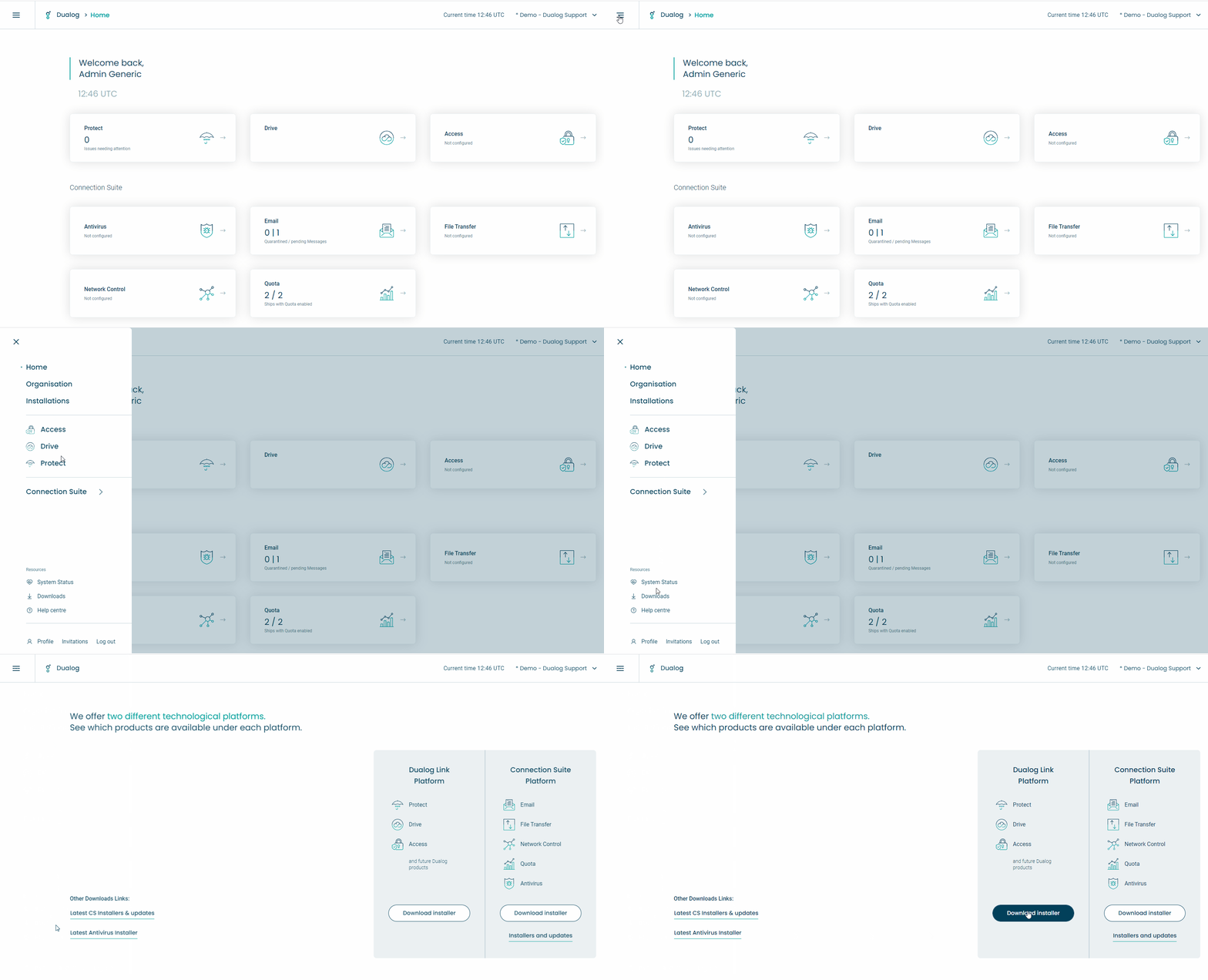
On this page, you will find the latest download link for the installer required for any Dualog link platform services.
This installer is mandatory for the following services:
- Dualog Access
- Dualog Drive
- Dualog Endpoint
- Dualog Fetch
- Dualog Protect
DOWNLOADS
| File/Link | Size | Purpose |
| Dualog Client Installer.exe | 153MB | Full installer for Dualog link platform and services |
Please refer to the following article on getting started with the installation and activation of Dualog Link Platform and services:
Dualog Link Client - Installation & Activation
A running monthly log of releases across the Dualog platform and services, newest month first, listed by individual service. This is the at-a-glance roundup; each service also keeps its own release notes page as the detailed source. Onboard software updates, including new Connection Suite versions and updated Link clients such as Drive and Endpoint, are triggered per installation from the Apps Portal under Available Updates and delivered over the air, while cloud and portal-side changes apply automatically.
September 2026
Apps Portal
Alerts (15 September)
- Move packages pending: alert when a Drive move task has too many packages waiting to be delivered to a ship
- Packages for S3: alert when a Drive move task has delivered more than a set amount of data to Amazon S3 in the current month
- Alert when the UTC time on a Link Platform installation is incorrect
- Alert when more than a set number of ships in the fleet are offline at the same time
Ship Staff (8 September)
- Crew account lists, group members and account pickers (for groups, distribution lists, Workspace and webmail) now load one page at a time, for a faster experience in organisations with many users
- Loading indicators while accounts load or when switching organisation
- Adding accounts to a group now lists only people who are not already members. Members are removed with the × in the members list
Installation page (11 September)
- For installations with Remote Terminal, the installation page now shows how far the ship's clock has drifted from server time, and when this was last measured
Dualog Drive
Drive 14.8 and 14.9 (7 and 30 September)
- Improvements to error detection and reporting
- Sync: better support for writing large files to file servers, with the write timeout extended to 60 minutes
- Move: each package is now processed in its own working folder for more robust sending
- Sync: improved handling of large change sets split across multiple revisions
Status page (1 September)
- Issue cards can now be grouped by type (for example, only S3 issues), searched and filtered
- Each issue type now includes an explanation and guidance on how to resolve it
- New issue types for Amazon S3: invalid or expired AWS credentials, access denied by bucket policy, bucket not found, bucket region mismatch, AWS role cannot be assumed, and uploads throttled by Amazon S3
Units page (1 and 16 September)
- Now available as a new tab on the Drive page
- Sort and filter units by activity, with the list sorted by activity as standard
- Pagination on the units table
Malware detections (28 September)
- Select individual detections, or all detections across every page, and mark them as resolved in a single action
ShareView (29 September)
- When limiting a ShareView to specific vessels, the picker now lists only the source and destination units of the selected task
- Smoother paging on a Move ShareView's Completed tab, with your selected package kept in place as more pages load
Dualog Mail
Connection Suite 5.13.009 (14 September)
- Improved handling of deeply nested folders in Outlook
- Improved handling of messages with a malformed address in Outlook
- Updated Roundcube webmail to 1.6.19
- Faster startup for Connection Suite services, including the Transmission Client
Dualog Network Control
Apps Portal (3 September)
- Firewall rules can be searched across all fields, including name, carrier, user group, source and destination
- A more compact create and edit dialog for firewall rules, with destinations managed as a list or edited as text
- Ships now show their worst gateway status at a glance, with the first ship expanded by default
- Disabled external gateways are shown dimmed
Dualog Quota
Apps Portal (3 September)
- Reader users can now open Quota and generate reports
Delivered in Connection Suite 5.13.009 (14 September)
- New Usage overview tab on the Quota page, showing internet usage per gateway and per user (requires the Quota Reports read permission)
- Advanced login on the captive portal: activate internet for a different device than the one you are logging in from, such as a smart TV
Dualog Workspace
Released through the month, up to version 2.36.0:
- Conversation tabs for switching between open conversations, and pinned messages
- A Files tab in every conversation to browse everything shared, filter by file type, and jump to the message where a file was shared
- Copy a link to any message. Opening it takes the recipient straight to that message, highlighted
- Link safety check: Workspace shows the real address and asks you to confirm before opening a link that is disguised as something else (7 September)
- Japanese is now available as a language, and language changes apply straight away (23 September)
- Desktop: launch at login and start minimised, an unread indicator on the tray, taskbar and dock icons, Workspace links open directly in the app, and updates apply without a restart
- The Windows app is signed with Dualog as the verified publisher
- Admin: a new Ships tab listing the fleet, with a view of each ship
- Admin: incoming webhooks, including Zendesk and a generic option, so external systems can post into channels. Bot messages show a clear name, badge and avatar
- Redesigned account menu and role picker
- Mobile: settings rebuilt as a single page with quick pickers for language, time zone and dark mode, and channel browsing opens full screen
- Unread thread replies now open directly at the reply
- Searching for people matches accented names from plain letters (for example, "bjorn" finds Bjørn)
- One consistent emoji set everywhere, with Tab to insert from the shortcode picker
- Tap a profile picture to view it full size
- Attachment previews now appear below your text when composing
- A refreshed setup wizard for new users
- Smaller improvements to tablet layouts, dark mode, the forward menu and desktop spelling suggestions
August 2026
Apps Portal
Alerts (11 August)
- Choose exactly which alerts each recipient receives, instead of sending every alert to everyone
- Each recipient under Organisation → Alerts now shows how many alerts they are subscribed to
Ship Staff
- Bulk changes to user email addresses and names (28 August)
- Ship Staff Automation: option to delete an account, and option to assign a user to a ship (31 August)
Dualog Drive
Units tab (27 August) - available on request
- A new per-unit view of Sync and Move activity alongside Status, covering both ships and offices
- Unit list with an activity tag, search and filters
- Per-unit page showing Sync and Move tasks, with an installation switcher for units running more than one installation
Installations page (27 August)
- Assigned tasks are now shown in the installations table, so you can see which installations are used as source or destination without opening them, and filter on it
- Source and destination paths, including any path overrides, are shown when you open an installation
SharePoint sync source (18 August)
- Sites with large backlogs now sync reliably in a single run. Changes are processed in revisions of 500, and those revisions run consecutively until everything is synced
- A file that fails to download no longer discards the rest of its revision. Files that downloaded successfully are kept, and only the failed files are picked up on the next sync
Ship Groups (10 August)
- Adding or removing a ship in a Ship Group used as a source or destination now applies across all task types. Adding a ship gives it all related configurations, and removing it takes them away
Dualog Mail
Connection Suite 5.13.008 (25 August)
- Emails containing certain attachments, and lines beginning with a period, are now handled correctly (SMTP dot-stuffing per RFC 5321)
- Fixed Outlook mobile connecting to the Dualog IMAP service
- Disabling a user in Dualog no longer has to disable the matching Active Directory user. This is now optional
- Updated Roundcube, and PHP to 8.3.33
- Performance improvements in webmail
Dualog Workspace
Released through the month, up to version 2.22.0:
- Forward a message to another conversation, with a badge showing where it came from and a link back to the original
- Search now opens a dedicated results page, so you can scan every match in one place
- Faster images. Chat photos and profile pictures are compressed before upload and show instant previews while they load
- Collapse sections of the channel list, remembered per device, while unread channels stay visible
- A macOS desktop app, for Apple silicon (13 August)
- Closing the desktop window now minimises to the system tray instead of quitting
- Online status now tracks all your connections, so closing one tab no longer shows you as offline. You are set offline automatically after 20 minutes of inactivity
- Smaller improvements to link editing in the message box, file type icons, dropdown readability at large font sizes, mobile caching, and retrying or discarding unsent messages
July 2026
Dualog Identity
- View all user activity now separates ship-side and cloud-side authentications, so cloud events are traceable alongside onboard identity server activity (7 July 2026)
- Filtering added to the Activation Links page, with smaller usability improvements (8 July 2026)
- The crew invitation email now uses the Dualog Identity naming
Dualog Workspace
- Favourites: star any conversation to pin it in a new Home section
- Mark messages as unread to come back to them later
- Unsent messages now survive a reload or a dropped connection, with the option to retry or discard
- Video attachments play inline, and PDF attachments open directly in chat
- Camera capture straight from the message box on mobile
- Rebuilt search with fuzzy matching and results ranked by relevance
- Keyboard shortcuts throughout the desktop app
- Participant counts on group conversations in the chat list
- Consistent emoji rendering across web, desktop and mobile
- Admin: analytics dashboard with CSV and PDF export
- Admin: add remote members to a ship's channels
- Smoother mobile gesture navigation, with settings, profiles and conversation details opening full screen
June 2026
Dualog Mail
- Updated Roundcube webmail to version 1.6.16 (Connection Suite 5.13.004)
Dualog Quota
The Quota App is updated through the app stores:
Quota App 4.1.1 (11 June 2026)
- Terms and Conditions now require scrolling to the end before they can be accepted
- Throttling now shows only speed options below the available speed
- Hire now suggests an end date in the following month, avoiding accidental one-day hires
Delivered in Connection Suite version updates:
- More accurate usage tracking on shared computers (Connection Suite 5.13.005)
- The Quota overview no longer lists deleted or inactive users (Connection Suite 5.13.006)
Dualog Drive
Several releases through the month (up to version 14.7), focused on Sync reliability and transfer efficiency:
- More dependable handling of large file transfers and acknowledgements
- Strengthened safeguards in malware scanning
- Reduced server load
Dualog Endpoint
- Fixed the ordering of firewall exceptions in the Apps Portal after one or more are removed
Dualog Fetch
Portal updates:
- Option to set a TTL on the consumer queue
- CSV export now respects the selected filters
- Loading indicator added to the status page
Dualog Protect
A major update across the Protect services:
- Updated to the latest libraries and dependencies
- DNS logging now uses server UTC time for consistent, accurate timestamps
- Improved service stability
- Groundwork laid for upcoming Network Control live-traffic features
- Apps Portal: added a ship filter when reviewing blocked DNS events
Apps Portal
Dualog Alerts: Time Drift
- New alert when an installation's UTC time differs from the Dualog server time (5 June 2026)
- Requires Connection Suite 5.12 or newer on the client
Dualog Workspace
Released steadily through the month (up to version 2.18.0):
- Set a personal status, with the option to clear it automatically after a set time
- Browse and join available channels yourself
- Rebuilt, more powerful search with sender and channel filters
- Mute channels while still receiving messages that mention you
- Unread message badge on the mobile app icon
- Image thumbnail previews and a swipeable image gallery
- Link previews before you open a link
- Message formatting, including quote blocks, inline code and code blocks
- Read-only announcement channels
- A Linux desktop app, plus a self-updating Windows desktop app
- Full-screen conversations on mobile, with various mobile stability improvements
- A refreshed look with improved dark mode
Connection Suite release notes provide information on the features and improvements in each release. This page includes release notes.
Latest Connection Suite Installers: https://support.dualog.com/hc/en-us/articles/360018097380-Dualog-Connection-Suite-Latest-Download-Links
Version 5.14.002 - 22nd October 2026
Cybersecurity Improvements:
- Update PHP to 5.3.36 (Fix for CVE-2026-109618 and CVE-2026-109619 ref: https://www.php.net/archive/2026.php#2026-10-21-5)
Bugfixes:
- Installer - Fix false DBConnector.dll load failures that could abort installations and upgrades.
Version 5.14.000 - 15th October 2026
New Features and Improvements:
- Upgraded .Net runtime from 8 to 10.
- Updated dependency on Digital Platform to 14.0
- Quota/Traffic Log: Automatically clean up traffic logs older than 100 days to reduce Oracle data size
- Note: Cloud traffic logs are not deleted
Bugfixes:
- Mail/IMAP: The Outlook-specific "rename recovery" no longer affects folders renamed to their own name.
- Identity/Active Directory: Now currently works when AD requires encryption.
- Quota/Traffic Log: Oracle UNDO-tablespace no longer runs out of space on large traffic aggregation tasks.
- Quota/Overview: No longer display double scroll bar in GUI.
- Quota/Captive Portal: No longer truncate "Advanced Login"-menu option.
Version 5.13.010 - 12th October 2026
New Features and Improvements:
- Network Control: New NDIS driver co-signed by Microsoft
- The new driver is only installed for new installations of Connection Suite. No changes are made for upgrades from older versions of Connection Suite
Version 5.13.009 - 14th September 2026
New Features and Improvements:
- New "Usage overview" tab added the Quota page (requires "Quota Reports" read permission).
- Captive Portal now supports Advanced Login: Sign in on another device by specifying its IP address.
- Improved start up time for Transmission Client.
- Improved start up time of all .NET services.
- Updated RoundCube to 1.6.19.
Bugfixes:
- Fixed an error preventing Outlook syncing when Outlook folder paths too long.
- Fixed an error where the wrong .Net version was targeted for DualogServiceControl
- Fixed an error that caused Outlook to continually resubmit the same email when a malformed address was used.
Version 5.13.008 - 25th August 2026
New Features and Improvements:
- Minor performance improvements on webmail
- Make it optional to disable users in AD when they're disabled in Dualog
- Updated Roundcube
- Update PHP to 8.3.33
Bugfixes:
- Fixes emails where certain attachments and lines starting with a period were received incorrectly, by implementing SMTP dot-stuffing per RFC 5321.
- Fix retry loop when sending internal mails
- Remove doctrine usage from Roundcube
- Fix Outlook mobile not working against our IMAP service
Version 5.13.006 - 25th July 2026
Bugfixes:
- Quota: Fixed issue where quota overview page was displaying deleted or inactive users.
Version 5.13.005 - 11th June 2026
Bugfixes:
- Quota: Fixed issue where ongoing traffic on shared computers were logged on incorrect users causing potential system over-usage.
Version 5.13.004 - 2nd June 2026
New Features and Improvements:
- Webmail: Roundcube upgraded to version 1.6.16
- Quota/Scheduler: Add logging if logging out users take longer than expected
Version 5.13.003 - 26th May 2026
New Features and Improvements:
- Network Control/Gateway Audit Events: Always send gateway connection status on start-up
- Webmail: Give better error page if users don't have access to webmail
Version 5.13.002 - 12th May 2026
New Features and Improvements:
- Network Control: Record gateway online/offline status in cloud
- Identity/AD integration: Add security group handling based on user rank and mappings configuration
Bugfixes:
- DHCP: Now correctly handles leases created on apps.dualog.com
- DHCP: Now correctly updates lease expire time and hostname on change
Version 5.13.001 - 7th May 2026
New Features and Improvements:
- Mail: Makes IMAP auto-subscribe to a folder after creating it.
- Quota: Transaction list values are now rounded to 2 decimals.
Bugfixes:
- Mail: Clean up orphaned MIME messages in the SMTP server.
- Mail: Use an 'envelope from' as the email sender instead of aliases or message header values. Previously, sending from an alias could cause the message to be sent to "Needs Approval".
- Mail: Enforce UTF-8 byte limits when truncating values for Oracle byte-sized columns.
Version 5.13.000
New Features and Improvements:
- Quota: Added "speed cap" as option to Quota configuration. This is a per-device maximum speed limit that is automatically enforced.
- Quota/Terms and Conditions: Added audit log for when users have accepted terms and conditions
- Captain's Overview: Added search-filter to look up active users
- Webmail: Updated to Roundcube 1.6.15
Bugfixes:
- Mail/SMPT: Fix empty subject causing SMTP server to fail
- Login/OAuth: Fix access tokens not being properly cached (token caching was turned off)
- Webmail: Stop collecting addresses in Roundcube
- Quota: Fix rare edge-case where users with expired timer or exceeded quota were not logged out
- Quota/Captive Portal: Only show 2 decimals in currency
- Quota/Captive Portal: No longer marks some sessions that are manually logged out as "remotely logged out"
- Installer: Check that hostname does not exceed 15 characters in the full-installer
- Webmail: Deny access for users that don't have access to webmail
- IMAP: Change error message when file is to large for IMAP
- Captain's Overview: Now hides user groups with no users
Version 5.12.002
New Features and Improvements:
-
Quota:
- Added new "captain's overview" for logged in devices with option to log-out users (Requires QuotaReports-permission).
- Users must now scroll down to bottom of terms and conditions before they can accept.
- Terms and conditions headers 3-9 now have correct sizes.
Version 5.12.001
New features:
- The legacy captive portal (/ipcontrol) has been removed. Users are now redirected to the Ship GUI "My Page".
- The PHP API used by the legacy captive portal and the “Crew Connection App” is disabled.
- The "Crew Connection App" no longer works with this version. Users must upgrade to the Quota App.
New features:
-
Quota/Terms and Conditions:
- Custom terms and conditions can be configured that must be accepted by users before using internet on board.
- App users require Quota App version 4.3.0 or newer. Otherwise, terms and conditions must be approved in the Captive Portal.
-
Quota/Captive Portal:
- Allows user to change gateway or throttle-settings without logging out.
- Device List: Added hostname from DHCP to logged-in devices overview.
- Device List: Added "This device"-indication.
-
User and Login:
- Supports "User cannot change password" property. If this is set, users are not allowed to change their password on board.
- User is now required to enter an end-date when signing on to a new ship. This defaults to next month.
Bugfixes:
-
Quota:
- Normal logout from Internet is no longer listed as "Remote logout".
- Wallet balance now shows decimal numbers.
- The "Connected devices"-page is now refreshed on an interval.
- Speed-limit for gateway-config is no longer shared between different accounts on the same device.
- "Network has changed"-events from Windows are now correctly processed. This reduces the risk of failing after network disconnection events.
-
Mail:
- Cloud email accounts are now correctly sent to shore.
- SMTP Relay: Fixed problem where incoming messages were not relayed.
- "Manual Connect" button is hidden if user doesn't have access to it.
-
Identity Server:
- Now always update scopes on restart.
Version 5.11.008
Bugfixes and Improvements:
- Apache: Fixed a problem where the Apache Web Server did not start after a fresh installation due to a missing logs folder.
Version 5.11.007
New Features
-
Quota/Captive Portal
- Allows users to throttle their Internet speed to reduce streaming quality and save bandwidth.
- Requires "Gateway Selection At Login" User Group toggle, under the Groups > General tab.
- Allows users to throttle their Internet speed to reduce streaming quality and save bandwidth.
-
Webmail
- Added AI-Proof Reader
- Note: This feature requires a feature flag to be set.
- Added AI-Proof Reader
-
DHCP
- Expired leases are now deleted on the client so the shore report only contains active leases.
-
Ship GUI/Captain's Overview
- Added user group filtering for on-board users.
- Note: This features hides users with no user groups by default
- Added user group filtering for on-board users.
-
Ship GUI/Approve Hire
- Allows approver to edit the pre-hire before approving it
Bugfixes and Improvements:
-
DHCP
- Fixes problem where some leases are never considered "expired" and thus cannot be reused.
-
Quota/Captive Portal
- Now refreshes the "Used Data" without requiring page reload.
-
Ship GUI/Hire
- Hires created from devices with the local time set to the past or in the future are now correctly created.
-
IMAP
- Adjust error text when large mail is appended to IMAP.
Security/Other:
-
Webmail
- Upgraded RoundCube to 1.6.12
- Ship GUI
- Upgraded to Angular 20
-
Network Control
- Network Control is no longer susceptible to DNS poisoning attacks. Source ports chosen by the NAT-engine are now picked randomly instead of from a sequential list.
Version 5.11.004
Bugfixes and Improvements:
-
Network Control/Quota
- The NAT-engine in Network Control now uses ports from the IANA private range 49152-59152.
- DNS requests now get their one entry per request in the NAT-table in Network Control. This is done to avoid UTMs from classifying the Dualog DNS relayed traffic as spam or hostile
Version 5.11.003
Bugfixes and Improvements:
-
Network Control
- Now correctly marks gateways with no valid IP address as offline
-
DHCP
- Fixed a potential crash when releasing a lease on the ship
Version 5.11.002
New Features
-
Sell Quota
- The Sell Quota page now contains more details about users (incoming balance, usage, top-up per) per month - now also including last month
- The Captain can now stop top-up for the remainder of the month for all users in one go
-
My Page
- The automatic disconnect-timer can now be renewed
- Users can now see their other logged in devices
- The "Quota Reset" count-down now shows days or hours depending on how much time is left
Bugfixes and Improvements:
-
Sell Quota
- It is no longer possible to create 0-dollars transactions
- Quota can now be sold in cents
-
My Page
- Now only refreshes if the user was successfully logged on
- Local time zone no longer affects the "Quota Reset" count-down
-
Mail Management
- Fix mail subpage stuck in infinite loading when mail has empty receiver fields
-
Mail
- Set correct timestamp on mails sent internally
- Fix mail statistics job populating stationary users from other ships
Version 5.11.001
Bugfixes and Improvements:
- Platform:
- Fixed a bug where the check for an existing Link installation would fail if it was in the 32 bit registry path.
- Quota:
- Fixed a bug where the
IsSomeoneLoggedInAPI response unpopulatedCarrierVesselIdfield - Fixed a bug where a race condition would occur if a user logged out and back in very quickly.
- Fixed a bug where the
- Identity:
- Added support for exposing a crew's rank to the id token and userinfo endpoints. This allows third-party applications to give access based on a user's rank.
Version 5.11.000
Bugfixes and Improvements:
- Users are now logged out from Internet once their hire is expired.
With the new "Custom IP Login Timer" feature, users are potentially allowed to be logged in for years. With this feature, it was suddenly possible to have an Internet login that lasts longer than the user's hire. In this case, the user is now logged out as soon as the hire expires. - Bugfix: Captive portal is now always redirecting to "my page" - also for users with permission to view the overview page.
- Bugfix: Clicking the admin-panel no longer opens a new tab. This prevents the user to be logged out after one hour if both attempt to refresh the authentication token at the same time.
- Minor: Legacy and no-longer-used antivirus services and GUI-links are removed.
Version 5.10.005
New Features
-
Quota
-
My Page
- Users with the required permission are now allowed to specify their own "IP Login timer"
-
Slop Chest
- Captains are now able to stop users from topping up their account for the rest of the month
-
Captive Portal
- Added automatic mode for captive-portal to remove the need for common DNS across multiple networks. This will greatly improve Dualog Protect interoperability
-
My Page
Bug Fixes and Improvements
- IMAP: Prevent files that are too large from being added to IMAP folders.
Version 5.10.003
Bug Fixes and Improvements
- Extended token lifetime in the identity server from 1 to 24 hours. We experience time drift on many ships, and this is an attempt in being more lenient.
- Introduce new rename behaviour for IMAP to reduce incidences of Outlook sync issues on the IMAP server
- Fixed a bug where Link id updates were not correctly replicated to the linkintegration table
Version 5.10.002
Bug Fixes and Improvements
-
Network Control/Gateway Selection
- Route caches could incorrectly point to incorrect gateway after login with gateway selection enabled. Route caches are now correctly cleared on login.
Version 5.10.001
Bug Fixes and Improvements
-
Network Control/DNS Relay:
- DNS servers were not correctly updated on failover between gateways
Version 5.10.000
New Features
- Quota Gateway Selection
- It is now possible to allow user groups to choose between the quotas they have configured. This allows users, for example, to use their VSAT quota for reading the newspaper, while saving the Starlink quota for watching a movie later.
- Note: this requires a new user group configuration to be enabled
Bug Fixes and Improvements
- "Login loop" is fixed. Users are now logged in on their first attempt
- Captive Portal redirection now works for rules with gateway specified
Version 5.09.000
Bug Fixes and Improvements
- Ship UI
- General: upgrade Angular from v16 to v19
- General: fixed a memory leak
- General: Add username field to active hire table
- Identity: Fix blank page in login flow if user must change password and set hire
- Identity: Add session to tokens so that when you log out from one browser you're not logged out of all browsers
- Identity: Fix when logging out of Dualog Webmail, you're redirected to Ship UI login page instead of the webmail login page
- Identity: Better token handling in the Ship UI. Makes sure tokens are not tried to refresh in parallel.
- Identity: Fixed a bug where if hire has expired for user they are not able to log in again until cookies are cleared
- Quota: Add SignalR for live updates of gateway fail-over state
- Quota: add MTU validation to external routes
- Quota: Added a filter to the purchase history so only Top-ups are shown.
-
Mail:
- Fixed SMTP client parsing commands wrongly e.g. if a mail address contains the string "quit", the SMTP server will terminate the session
Version 5.08.009
New Features
- Added the newest version of the Link Platform, which contains the new Remote Terminal feature. Dualog admins and customers with the feature flag for this enabled can now remotely run PowerShell on the installation from the Dualog Portal.
Changes
-
Identity Management:
- Added Active Directory provisioning. Added new service DualogAccess.Client.Worker.Service that is responsible for provisioning users to AD
Bug fixes
-
Mail:
- Fixed an issue where the access rights were not being set properly on IMAP inbox folder in some cases
-
Platform:
- Fixed an issue with ICM trying to upload empty replication files
- Fixed an issue where login fails in the new UI when a user is already logged into the old UI and "remember me" was pressed
- Fixed an issue where Ship UI won't switch to using OAuth when persistently logged in and OAuth has been enabled
- Ship API:
- Fixed an unhandled exception in backgroundservice causing service to stop when Oracle is down
- Network Control:
- Fixed an issue where if Network Control had a gateway at the top of the priority list with a gateway address that doesn't exist, it would use that as the active carrier forever.
Version 5.08.008
Changes
- Network Control/Captive Portal - Now redirects users to the ship portal instead of the PHP-based portal
- Network Control/Live Traffic: Now support Live Traffic reporting
Bug fixes
- Network Control/Captive Portal - Now correctly redirects users to captive portal.
- Ship UI - Login bypasses change-password dialogue if username has a case-insensitive match
- Ship UI - No longer log out users when they should still be logged in
- Ship UI - Make access client cookie not session only
- Ship UI - Fix loading spinner color in access client
Version 5.08.007
Bug fixes
- Fixed an issue with ship-to-ship emails
Version 5.08.006
Bug fixes/Other
- Add NOOP and RSET commands to SMTP
- Update roundcube to 1.6.11
- Fix accounts that have no delivery option will be detected as external mails and sent to shore
Version 5.08.005
Bug fixes
- Add more logging to mail flow
- Make sure worker continues processing mails even though one mail fails
- Fix casing issue when sending internal mails
- Fix master getting extra copies of mail
- Fix duplicate body parts being generated
- Fix sign-on being wrong in some time zones
- Add option to not use "mime from" when checking the from address
Version 5.08.004
Bug fixes
- Fixed a case where internal emails were stored into the wrong IMAP folder
Release Notes
Version 5.08.003
Bug fixes
- Ship API/Worker - Fix case sensitive email comparison on queries
- Ship API - Use 127.0.0.1 when connecting to Network Control
- Service Manager - Hotfix: Ensure connect to 127.0.0.1 when doing lock on tunnel
Version 5.08.002
Bug fixes
- Installer - Add firewall allow in smtp server (on new install/upgrade to 5.08).
- Network Control - Simplified DNS by changing its behavior to broadcast incoming requests to all configured DNS servers simultaneously and forwarding only the first response received.
- SMTP server - Don't use Mimekit library to add Dualog headers so it will preserve the header formatting.
- Ship API - Add lowercase when checking if mail sender needs approval
- Ship Worker - Fix rescheduling of background tasks
- Transmission Client - emails approved from quarantine are now downloaded properly when ICM is enabled
Version 5.08.001 (version 5.07 has been merged with this version)
New Features
- New login page
- Role-Based Access Control
- Outlook/App Passwords
- Synchronizing user ranks to ship side
- Implemented password policy on ship side identity server
- SSO between Ship UI and webmail
- Turned Connection Suite service ports off by default
- Added OAuth support to
- IMAP server
- LDAP server
- Ship UI
- Webmail
- Ship API
New Services
- Reimplemented SMTP server
- Identity server
Bug fixes/Other
- Fixed a bug where desktop view in webmail would sometimes malfunction
- Various minor bug fixes in the Ship UI
- Network Control Failover: Fixed a bug where reset gateway to init state from worker fails if allow override is false
- Updated third-party dependencies
Version 5.06.004 (note that version 5.06.003 has been merged with this version)
Bug Fixes
- Quota: Users are now correctly logged out if their quota is exceeded.
- Live Traffic Reporting (Experimental): A disconnected Link-client no longer shuts down the Worker Windows-service.
Version 5.06.002
Bug Fixes
- Network Control/Firewall: Rules with the same source IP, gateway and overlapping port numbers are now correctly processed.
- Network Control/Failover: The lowest ranked gateway in Network Control is no longer deactivated if ping-test fails. This prevents Network Control from having no available gateways and reporting an error to users.
- Network Control/Live Traffic Reporting (Experimental): Now correctly uploads traffic data to cloud.
Version 5.06.001
General Changes
- This version and future versions of Connection Suite now only support 64-bit operating systems
- Updated .NET to version 8
User Interface - Connections
- Override now lets the user specify allow/block. When an override is applied, the user is able to choose if they want to enable or disable the gateway. This allows users to add override commands to enable a gateway even if it is already online
Ship API
- Network Control
- WAN-failover settings no longer require restart. If the initial-state or other WAN-failover settings are changes, they are now applied automatically.
- Clearing the override now resets the gateway to its initial state. When an override is reset, the gateway is reset to its "initial state". This prevents gateways from ending up in an unintended state.
Network Control/Quota
- Added support for gateways with the same MAC-address. Gateways with the same MAC-address can now be used as long as they are in separate LAN-segments. This is common when the communication equipment is located behind a firewall/router and separated using VLANs.
IMAP Server
- If a mail is over 50 MB, a MIME message gets returned to the end user that saying the message is too big. We’ve seen at least one case where the mail parsing caused an extremely large message. This caused Outlook to get out of sync.
- Added logic to stop an infinite loop when parsing content-language. If a MIME has multiple languages in the content-languages, it could cause an infinite loop when parsing the message.
Version 5.06.000
- Desktop view is now available in Dualog Webmail, displaying the messaging preview underneath the message listing, rather than on the side
- Visual improvements to Instant Communication Mode: End users can now see the status of Instant Communication Mode i.e. whether the vessel is currently Downloading, Uploading, In Sync, or Offline
- Fixed a bug in Instant Communication Mode where there could be a mismatch in generated hardware id
Version 5.05.003
Fixes
- Fixed a bug where Quota traffic incorrectly was marked as business traffic and not counted towards a user's allowance
Version 5.05.002
Fixes
- Rewritten part of the Instant Communication Mode where some ships have observed uploads stopping.
Version 5.05.001
Fixes
- Increased a timeout value in Instant Communication Mode to resolve an edge cases where some ships have reported uploads stopping.
Version 5.05.000
Connection Suite 5.05 Release Notes
The release notes for older versions are available here.